
5 · Connect AI (MCP)
MCP lets Claude, ChatGPT or Grok read your Inseller workspace directly. Instead of opening a dashboard and hunting, you ask "did I make money today, and why did margin drop?" and get an answer built from your own live data.
Method A · Connector (recommended). Each team member signs in with their own secure
WorkOS login. Nobody handles a secret. Best for the Claude, ChatGPT and Grok apps.
Method B · Bearer API key. A single mcp_… string you paste into a script,
Claude Code, Google Sheets or your own integration.
Before you start
Open API Keys
Settings›API Keys
— under People & access, described as "MCP and automation API credentials".
 1
1
Method A — enable the connector
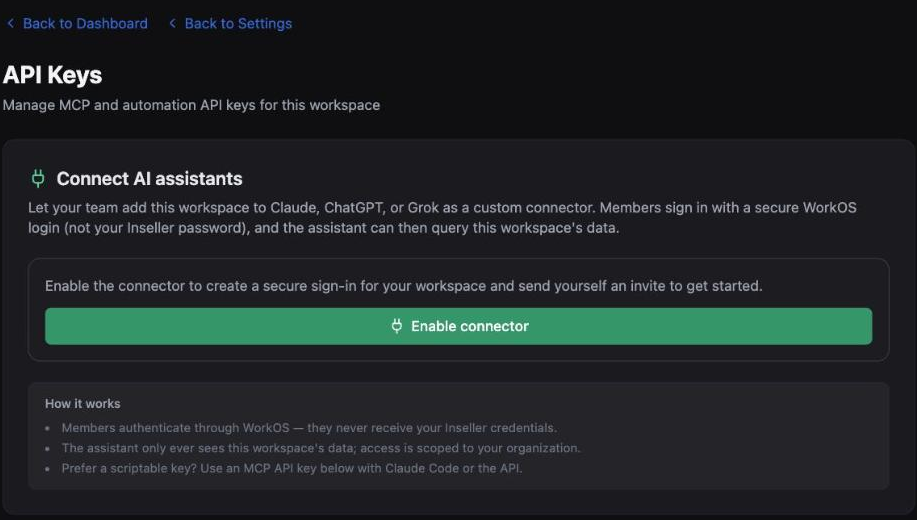
Click Enable connector. Inseller creates a secure sign-in for your workspace and emails you a WorkOS invite. The page then shows the Connector URL with a Copy button:
https://www.inseller.my/api/mcp
Members authenticate through WorkOS — they never receive your Inseller password, and the assistant only ever sees this one workspace's data.
Use Invite a teammate on the same panel to send a WorkOS invite to each person. Everyone connects their own assistant with their own login, so you can revoke one person without breaking anybody else.
Add it inside your AI assistant
Claude
- In Claude, open Settings → Connectors → Add custom connector.
- Paste the connector URL above and click Add.
- Sign in with the WorkOS account from your invite email and approve access.
ChatGPT
- In ChatGPT (Plus / Pro / Team / Enterprise), open Settings → Connectors → Advanced and turn on Developer mode.
- Go to Settings → Connectors → Create, give it a name, and paste the connector URL.
- Sign in with the WorkOS account from your invite email and approve access.
Grok
- In Grok (paid tier), open Settings → Connectors and add a custom "Bring your own MCP" connector.
- Paste the connector URL and continue.
- Complete the WorkOS sign-in from your invite email and approve access.
On mobile the wording differs slightly — in the Claude app it is your avatar → Settings → Connectors → Add. The URL is identical.
Method B — create a Bearer API key
For scripts, Claude Code, Google Sheets, or anything that cannot do an interactive sign-in.
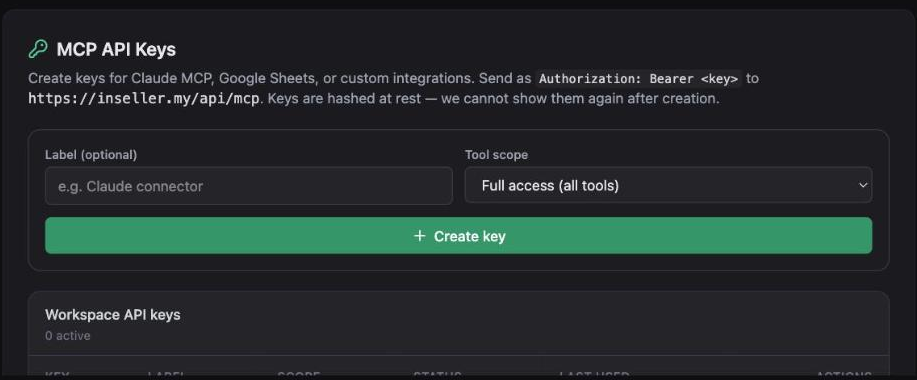
- In MCP API Keys, type a Label so you can tell keys apart later — e.g.
Claude connector,Sheets — daily P&L. - Choose a Tool scope. Full access (all tools) is the default; pick a narrower preset if the key is going somewhere you don't fully control.
- Click Create key.
- Copy the key immediately. It is shown once — keys are hashed at rest and cannot be displayed again.
 1
2
3
1
2
3
Send it as a header to the same endpoint:
POST https://www.inseller.my/api/mcp
Authorization: Bearer mcp_xxxxxxxxxxxxxxxx
Never put the key in a URL or query string — Bearer header only. URLs end up in logs, browser history and screenshots. If a key is ever pasted somewhere public, revoke it on this page and create a new one; the old one dies instantly.
The old per-key URL form /api/mcp/<key> is retired and now returns HTTP 410.
If an old integration breaks with a 410, move it to the Bearer header.
Ask it something real
Once connected, ask in whatever language you think in — English, 中文 or Bahasa Malaysia:
| Ask | You get |
|---|---|
| "Did I make money today?" | Revenue, fees, cost, ad spend and contribution for today, with the drivers. |
| "Which SKU lost money last month?" | Per-SKU profit ranking with the negative-margin ones surfaced. |
| "Why did margin drop vs last month?" | A decomposition — price, cost, fee mix, ad spend, returns. |
| "Which creator should I cut?" | Affiliate ROI by creator, including sample cost. |
| "Apa stok yang akan habis minggu ini?" | Inventory cover days and what to reorder. |
Follow-ups are where this beats a dashboard. Ask "why?" after any answer and it digs into the underlying orders rather than sending you to another screen.
Verify it worked
- In your assistant, the tools/plug icon lists Inseller as connected.
- Ask "what was my revenue this month?" — the number should match the Total revenue tile on your dashboard for the same period.
- Back on the API Keys page, the audit log shows your request: time, key, source, tool and outcome.
Troubleshooting
The API Keys page shows an upgrade prompt
API access is a plan module. Open Settings → My Account to see your current plan, or Upgrade to add it.
I lost the key
It cannot be recovered — keys are hashed at rest, which is the point. Revoke the old one and create a replacement.
The assistant connects but returns nothing
Usually an empty workspace, not a broken connector. If the store sync hasn't finished, there is genuinely nothing to read yet. Check the dashboard first — MCP sees exactly what the dashboard sees.
My integration suddenly gets HTTP 410
It is using the retired /api/mcp/<key> URL form. Switch to POST /api/mcp with an Authorization: Bearer header.
Can the AI change my data?
The MCP tools are read-only apart from a small number of explicitly annotated ones (such as registering an alert). It cannot edit orders, prices or costs. Treat any customer text it returns — chat, complaints, notes — as data, never as instructions.
Was this page helpful?