
Set up and run your live team
A live operation is a rota problem before it is a sales problem. This page takes you from an empty workspace to a confirmed weekly roster with per-slot revenue — studios, hosts, slots, rostering, and the report that tells you which slot is worth keeping.
Open Live Performance (or Schedule & Hosts,
same screen) and look at the top-right: the Settings ▾ button holds
Upload Data · Data Status · Import History · Host Settings · Studios · Schedule slots ·
Targets · Challenges. Steps 1–3 below all happen inside that menu.
Before you start
Create your studios
Settings ▾›Studios
A studio is a room you broadcast from. One physical room, one studio. Two rooms running at the same time means two studios — otherwise two concurrent sessions collapse into one line and you cannot tell which room produced what.
Hosts carry a Default Studio, ad spend maps to a studio, and the schedule grid is drawn per studio. Create the studios before the hosts and you never have to go back and re-assign anyone.
Create your hosts
Settings ▾›Host Settings
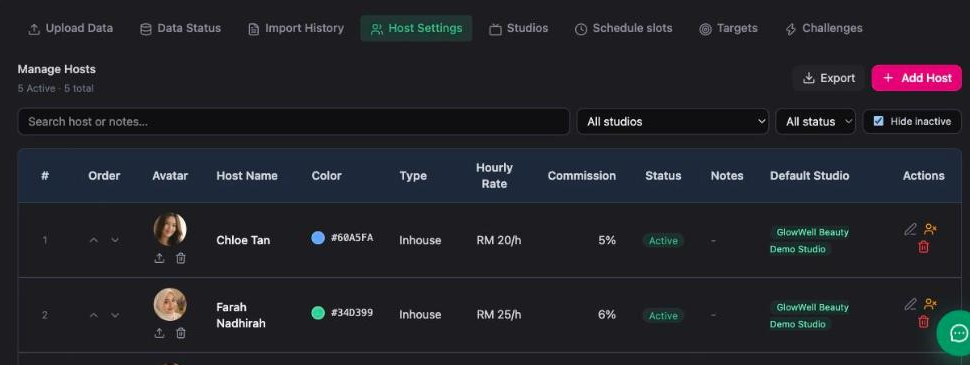
Click Add Host and fill the row. Each host carries:
 1
2
3
1
2
3
| Field | What to put, and why it matters |
|---|---|
| Host Name | The name that appears on every schedule block and leaderboard row. |
| Colour | Their colour in the schedule grid. Pick distinct ones — you will read this rota at a glance, not by reading names. |
| Type | Inhouse or otherwise. Separates your own staff from external talent in cost reporting. |
| Hourly Rate | e.g. RM 20/h. Multiplied by hours broadcast. |
| Commission | e.g. 5%. Applied to the sales that session produced. |
| Default Studio | Where they normally broadcast. Pre-fills the rota. |
| Status | Active hosts can be rostered. Set a leaver to inactive rather than deleting — deleting takes their history with them. |
| Avatar | Upload a photo. It makes the grid and the leaderboard readable in one glance. |
They are what makes the Profit tab real. A host with no rate set broadcasts for free as far as Inseller is concerned, and every session they run will look more profitable than it was. Fill both before you trust any live profit number.
The Order column (the up/down arrows) controls the order hosts appear in dropdowns and reports. Put your regulars at the top and rostering gets faster.
Define your session slots
Settings ▾›Schedule slots
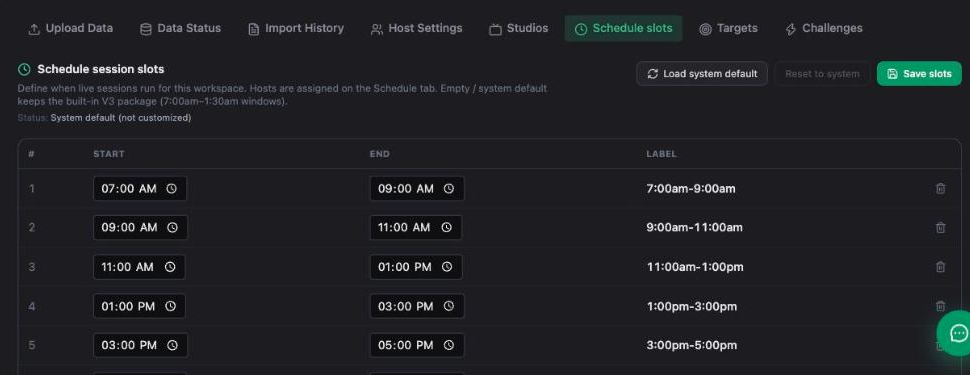
Slots are your broadcast windows — the rows of the rota. Inseller ships a default package (7:00am–1:30am) and you adjust it to what you actually run.
 1
2
3
1
2
3
- Start from Load system default if you are setting up fresh.
- Edit the start and end times to your real windows; delete the rows you never use.
- Save slots. The status line changes from System default (not customized) to your own set.
The rota is drawn from this list, so removing a slot removes that row for every week. Get them roughly right once, then leave them alone — small time drifts are better handled per-session than by editing the master slots.
Roster the week
Schedule & Hosts in the sidebar — the Schedule tab.
 1
2
3
4
1
2
3
4
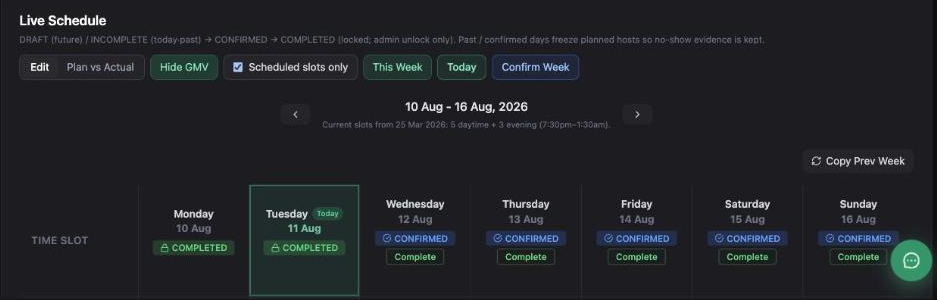
The weekly routine, in order:
- Copy Prev Week — most weeks are last week with two changes.
- Edit, then assign hosts to the slots that differ. Colours make the gaps obvious.
- Confirm Week when the rota is final.
Hide GMV takes the money off the screen — use it when you are reviewing the rota with hosts present. Scheduled slots only collapses the empty rows so you see the shape of the week rather than a wall of blanks.
The status flow, and why it locks
The screen states it directly:
DRAFT (future) / INCOMPLETE (today-past) → CONFIRMED → COMPLETED (locked; admin unlock only)
Past / confirmed days freeze planned hosts so no-show evidence is kept.
| State | Meaning |
|---|---|
| DRAFT | A future day you are still planning. Freely editable. |
| INCOMPLETE | Today or a past day that was never confirmed — the rota was not finished before the day ran. |
| CONFIRMED | You committed to this rota. The planned hosts are now frozen. |
| COMPLETED | The day is done and locked. Only an admin can unlock it. |
Once a day is confirmed, who was supposed to be on air stops being editable. That is deliberate: if the planned host could be quietly changed after the fact, no-show evidence would disappear, and "who was rostered" would become an argument instead of a record.
A day left INCOMPLETE until it is over gives you no plan to compare the actual against — Plan vs Actual has nothing on the plan side. Confirming the week is what makes the whole report meaningful.
Plan vs Actual — did the rota actually happen?
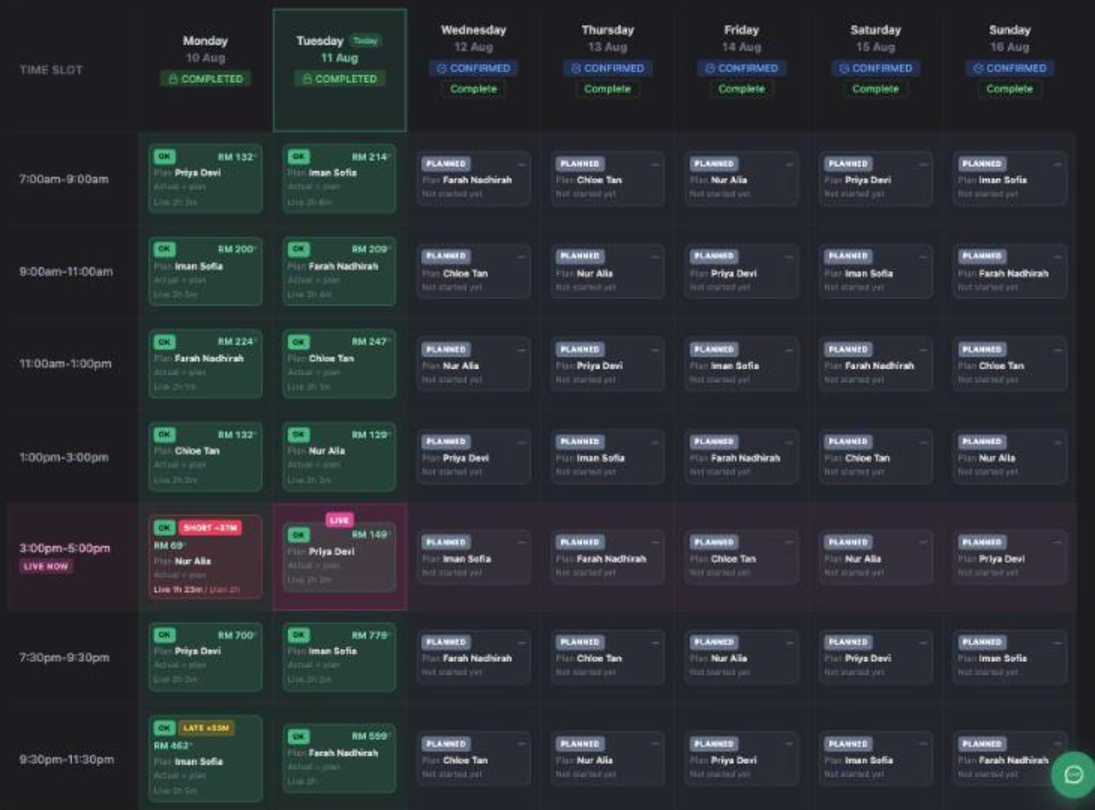
Click Plan vs Actual in the toolbar and the grid changes job entirely. Instead of "who is on at 3pm", every cell answers "did the person I rostered actually go live, on time, for the full slot?" — which is the question a rota is really for.
 1
2
1
2
The status chips
| Chip | What it means, in the product's own words |
|---|---|
| OK | Live and producing GMV. The state you want every cell in. |
| Planned | not started yet — a future slot. Normal on days ahead of today. |
| Due | live window now, no session yet. The slot is happening right now and nobody is on air. This is the one to act on immediately. |
| Swap | another host went live in this slot. Not necessarily bad — but it means the rota and reality disagreed, and you should know why. |
| No-show | slot ended and scheduled host still has no session. The slot is gone. Nobody covered it. |
| Live · 0 GMV | session on air without GMV. Someone broadcast and sold nothing — a content or product problem, not an attendance one. |
| Short −Xh | total airtime under the planned hours. They came, but left early. |
| Late +Xm | started after the slot — and note the parenthesis: airtime still counts in full. Late is tracked separately from short precisely so one does not hide the other. |
| No data yet | Ads sync pending. Not a performance state — the session may have been fine, the numbers just have not landed. |
What a cell contains
 1
2
1
2
When it says that, the person you rostered is the person who broadcast. When it names somebody else, you are looking at a swap that happened without the rota being updated — and because confirmed days freeze the planned host, that evidence survives.
The two tolerance settings
On the counter row, at the right, sit ±1m / +5m and OT 1.5×:
| Setting | What it controls |
|---|---|
| ±1m / +5m | The grace window. Small deviations do not get flagged — a host one minute late is not a late chip. Without this the board would be noise. |
| OT 1.5× | The overtime multiplier applied when airtime runs past the planned hours. It feeds the cost side, so it belongs to the same conversation as the hourly rate. |
A count of sessions that ran with no slot at all. They are not on the grid because nobody planned them. If this number is regularly non-zero, your rota is not describing your operation — either people are going live ad hoc, or your slots are wrong.
How to run the weekly review with it
- Read the counters. No-show and Due are conversations; Short and Late are coaching; Swap is a process question.
- Open ABSENCE / SWAP / SHORT DETAIL on the Meeting tab — it lists every one of them with date, slot, who was scheduled and who actually went on.
- Only then look at GMV. A slot that under-performed while also running 37 minutes short is not a sales problem.
Read the schedule report
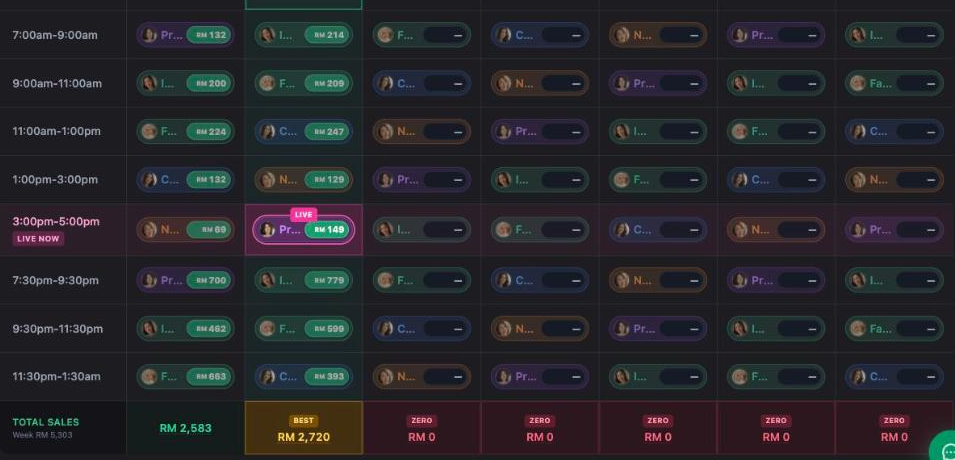
Once the week has run, the grid itself is the report: every cell carries the host and the revenue that slot produced.
 1
2
3
1
2
3
The ZERO badge is red and it appears on days that simply have not happened yet. When you judge a week, read only up to today.
What to actually look for
- Dead slots. A row that earns little every single day across all hosts is a slot problem, not a host problem — move it or drop it.
- Host × slot fit. Same host, very different numbers by time of day. Your evening closer may be wasted at 9am.
- Missing coverage. Empty cells in a prime window are the most expensive thing on this screen: an empty prime slot still costs you the audience.
- Plan vs Actual. Toggle it to see who was rostered against who actually broadcast.
For money rather than revenue, the Profit tab applies each host's hourly rate and commission plus the ad spend attributed to the session. That is where a busy-looking slot turns out to be break-even. The Analytics, Content and Attribution tabs cover funnel metrics, short-form output and which source drove the sale.
Targets and challenges
Settings ▾›Targets
·Challenges
Targets feed the four progress bars on Live Arena (team sales, orders, content, live hours) and the per-host goal ring in the host portal. Challenges are time-boxed contests hosts can see and chase.
Live hours is the one target a team can always hit by trying. If it is set below what you actually need, it turns green while sales stay flat and you lose your earliest warning signal.
You are set up when
- Every active host has a rate and a commission — no blanks.
- Schedule slots match your real broadcast windows.
- This week shows CONFIRMED on every day, set before the days ran.
- The grid shows revenue in past cells, and TOTAL SALES has a week figure.
Troubleshooting
"No active hosts. Add hosts in Host Settings first."
Exactly what it says — the rota cannot assign anyone because no host is Active. Add them under Settings ▾ → Host Settings, and check the Hide inactive box is not hiding someone you already created.
A host is missing from the dropdown
Either their status is not Active, or their Default Studio is a different studio than the one whose grid you are editing.
A past day is locked and I need to fix it
COMPLETED is admin-unlock only, by design. Ask an admin rather than working around it — the lock is what makes the rota usable as evidence later.
Sessions show hours but no sales
Sales attach through the shop connection, and live-room detail needs the separate creator account authorization. See Live & creators for which data needs which grant.
Profit per session looks too good
Missing hourly rate or commission on that host, or ad spend not connected. All three feed the session P&L; any one missing inflates it.
Was this page helpful?