
Affiliate data — the daily upload
Shopee gives us a real affiliate API, so those creator numbers arrive on their own. TikTok does not: its Affiliate module has no open API, so three exports have to be carried across by hand. It takes about five minutes a day, and it is the only thing standing between you and knowing which creator actually made you money.
Before you start
Why this one is manual
It is worth understanding the gap, because it tells you what breaks when you skip a day. TikTok's order and settlement feeds are fully automated — what they do not carry is who sold it.
| Channel | How creator attribution arrives |
|---|---|
| Shopee | A real affiliate API. Inseller syncs it directly, and attribution runs at roughly 100% with nothing for you to do. |
| TikTok | No open Affiliate API. The settlement payload tells us a commission was paid — so we can infer the order was an affiliate order — but it never names the creator. The only thing in the whole system that writes a creator name against an order is the file you export. |
A shop's creator-attribution rate is simply how recently someone exported. A shop nobody has ever uploaded for sits at 0% — every affiliate sale is there in the revenue, with no creator attached to it. Inseller shows the unattributed remainder on every creator-level table on purpose, so a total is never quietly wrong.
Sample dispatch is done for you. Sample orders now sync from the Order API, so there is no longer a file to upload for "which creator was sent what". What remains manual is the three analysis exports below — the performance, ROI and commission numbers that live only inside Affiliate Center.
The permanent fix is TikTok's Affiliate Seller API — the
seller.affiliate_collaboration.read scope. Our application is still pending with
TikTok Partner Center, and the endpoint returns an authorisation error until it is granted.
When it lands, this page disappears and the three uploads become a background sync.
Export the three files from Affiliate Center
All three start from Seller Center → Affiliate, then Affiliate Center. Each has its own Export button and its own date-range picker — set the range on each one, they do not share it.
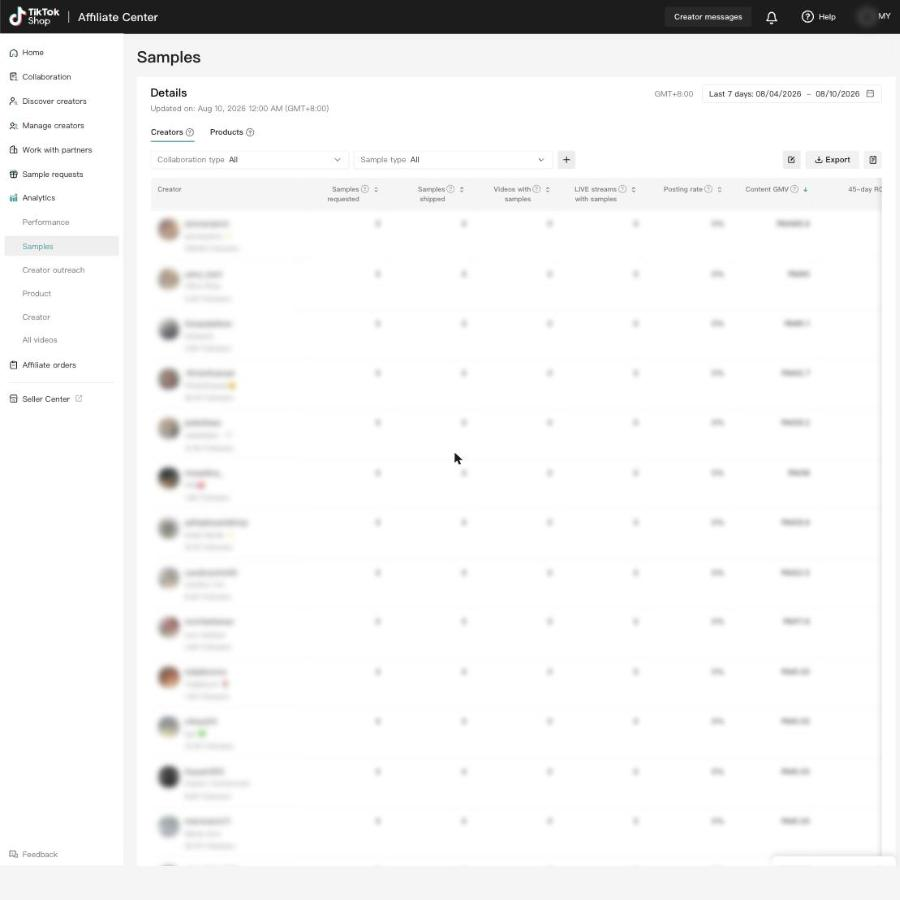
a · Sample Analysis
Affiliate Center›Analytics›Samples›Creators›Export
Who received samples, what they cost, and what came back: Content GMV and TikTok's 45-day / 90-day ROI. This is what turns "we posted out 40 parcels" into a payback number.
 1
2
3
4
1
2
3
4
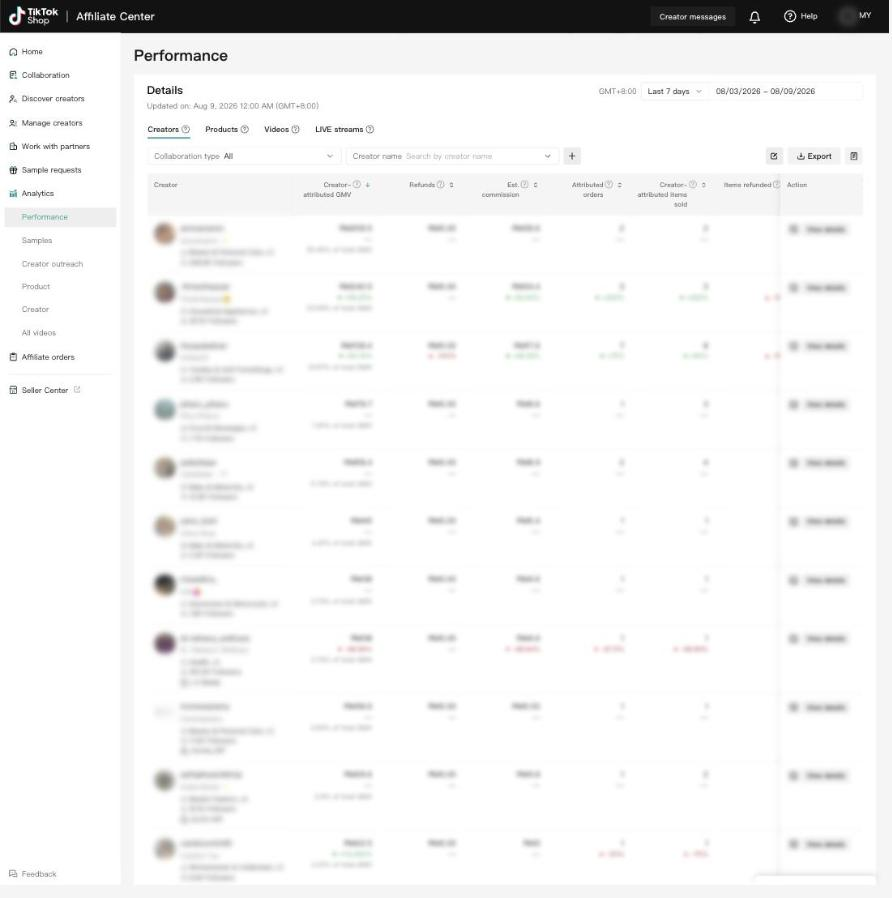
b · Transaction Analysis
Affiliate Center›Analytics›Performance›Creators›Export
Order-level commission with the creator username on it. If you only ever upload one of the three, upload this one — it is the file that repairs attribution.
 1
2
3
4
1
2
3
4
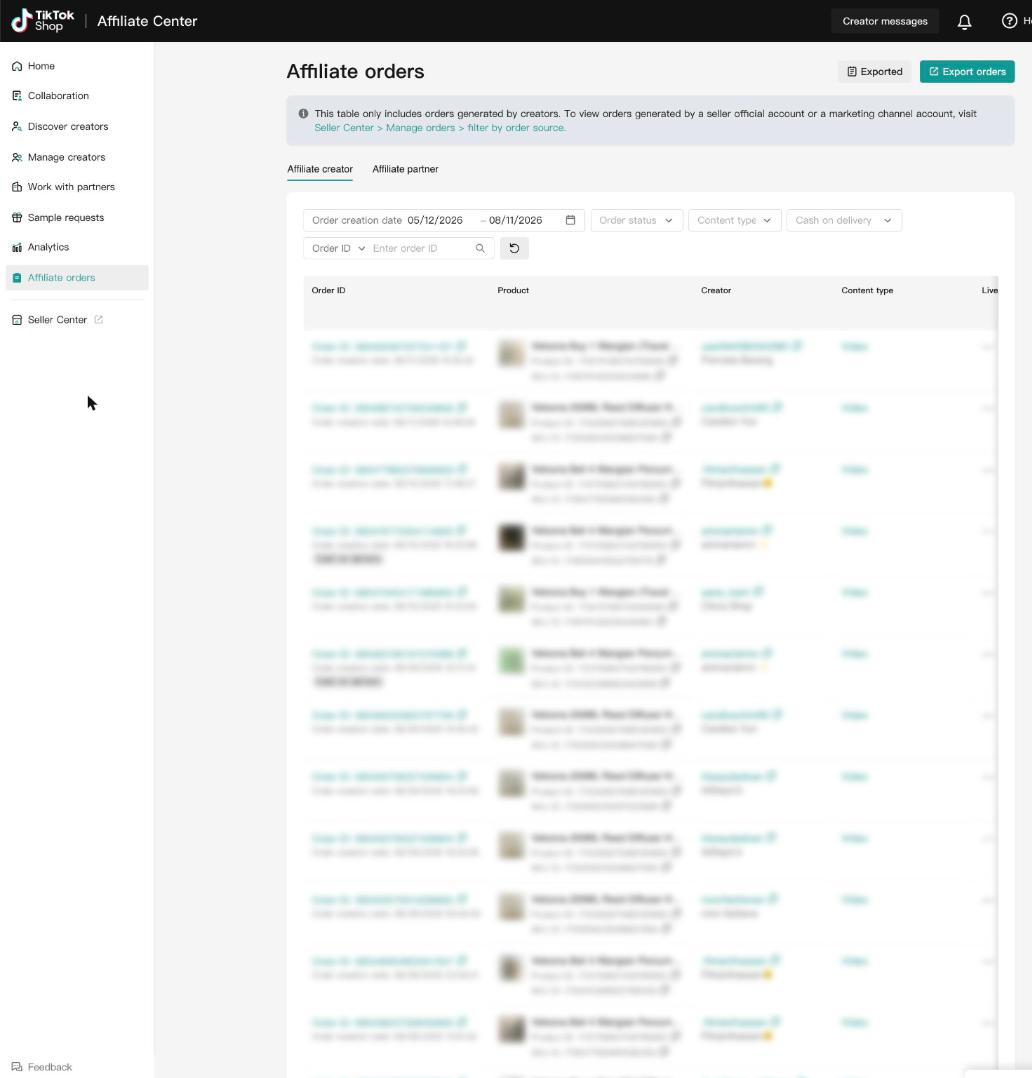
c · Affiliate Orders
Affiliate Center›Affiliate orders›Export orders› select date range
The order list behind those commissions — used to reconcile affiliate orders against the settlement feed.
 1
2
3
1
2
3
Inseller reads the period out of the filename. TikTok names its exports with the range
baked in, e.g. …_20260810-20260810.xlsx. Rename it to
affiliate-latest.xlsx and the import has no idea which days it covers, so the
month coverage table cannot mark those days as done.
Download all three into the same folder before you upload anything. Sorting out "did I already do Tuesday?" is much easier from a folder of correctly-named files than from the browser's download history.
Pick yesterday, not today
Set every date range to yesterday — a single complete day. It is tempting to grab today as well, since it is right there. Don't.
| Range | What you get |
|---|---|
| Yesterday ✓ | A closed day. Commission and GMV have settled, so the numbers you import are the numbers that stay. |
| Today ✗ | A day still in motion. You capture a part-day, and Affiliate Center's own figures are still being revised — you end up importing a number that TikTok itself later disagrees with. |
Affiliate Center reports on GMT+8, and it stamps the panel with its own "Updated on…" time. If that stamp is older than the range you asked for, the export is simply not ready yet — wait, rather than exporting a range TikTok has not finished calculating.
Same person, same time each morning, yesterday's date. Missed a few days? Export the gap as one range — the importer reads the whole range from the filename, so a single catch-up file fills every day it covers. Cover only the days you actually missed: a wide catch-up that overlaps days you already uploaded lands as a second row for those days rather than replacing the first.
Upload into Inseller
Settings›Data Import›Affiliate Data
— or from Affiliate›Management.
Under Import Affiliate Data there are three upload cards, in the same order you exported. Each card names its own Affiliate Center path, so you can check you are about to feed the right file to the right slot.
| Card | Feed it | Formats |
|---|---|---|
| Sample Analysis | The Samples → Creators export | .csv · .xlsx |
| Transaction Analysis | The Performance → Creators export | .csv · .xlsx |
| Affiliate Order | The Affiliate orders export | .csv · .xlsx |
Columns the importer insists on
You do not need to edit the file — TikTok's own export already contains these. They matter when something fails, because the error names the column it could not find.
| Meaning | Accepted headers |
|---|---|
| Order ID | Order ID · Order Id · order_id · OrderID · 订单ID |
| Creator username | Creator Username · Creator username · creator_username · 达人用户名 |
| Actual commission | Actual Commission Payment · Commission Payment · commission_payment · 实际佣金 |
A Chinese-language export works fine — the importer recognises both spellings. It matches
headers exactly, which is deliberate: 实际佣金 (the commission),
实际计佣金额 (the base it was calculated on) and
实际店铺广告佣金付款 (shop ads commission — a different pot of money entirely)
are near-identical names for three unrelated numbers. Loose matching would silently import
the wrong one.
Check it landed
Three things on the same page tell you whether today's run counted. Look at them before you close the tab — an import that reports success and changes nothing is the failure mode worth catching.
| Where | What good looks like |
|---|---|
| Current Data Summary | Upload Coverage counts the periods you have covered. It should go up, and it should not report the day you just uploaded as missing. |
| Data Upload Status (by Month) | A row per month, a column per file type. The current month should show all three as uploaded — this is the table to scan when you suspect a gap. |
| Import History | A new row with the filename, type, and rows imported. Rows imported: 0 with a success flag means the file parsed but matched nothing — treat it as a failure. |
Then check the numbers moved
- On Affiliate, creator rows carry commission for yesterday, and the unattributed remainder shrank rather than grew.
- Sample payback and blended ROAS show a figure instead of N/A — those cards use strictly the period's own sample cost, so an un-uploaded period reads N/A by design rather than borrowing an older number.
- Your best creators sit where you would expect. If a creator you know sold well is missing entirely, their orders are still in the unattributed pile — you uploaded Sample Analysis but not Transaction Analysis.
Troubleshooting
"Missing required columns: Creator username…"
Almost always the wrong export in the wrong card. Affiliate Center has several tables that all look like a creator list; only Analytics → Performance → Creators carries order-level commission with the username. The error lists the headers it actually found — compare them against the table above and you will usually spot a product export or an outreach list.
The import worked, but attribution didn't improve
You uploaded Sample Analysis only. It tells us what samples cost and what they returned, but it does not attach creators to orders — Transaction Analysis does that. Upload the Performance export for the same range and check the unattributed remainder again.
The month coverage table still shows the day as missing
The filename lost its date range. Inseller parses the period from the filename (…_20260810-20260810.xlsx), so a renamed file — or one your browser saved as export (3).xlsx — imports its rows but cannot claim any days. Re-download and upload it untouched.
Sample payback / blended ROAS shows N/A or RM 0
No sample cost was imported for that period. These cards deliberately refuse to fall back to lifetime totals: an older number in the denominator would hide the fact that imports had stopped, and quietly flatter the payback. Import the Sample Analysis export covering that period and the cards fill in.
Can I upload a whole month in one file?
Yes — the importer takes whatever range the filename declares. Daily is recommended because a closed day never changes again, whereas a month exported mid-flight has to be re-exported later. Use a wide range to backfill, a daily one to keep current.
Does re-uploading the same day double-count?
Re-uploading the same file is always safe. Changing the range is a different matter, and the three files do not behave alike:
- Affiliate Orders is keyed on the order ID — it re-stamps the same orders, so it is fully idempotent no matter what range you pick.
- Sample Analysis and Transaction Analysis are keyed on creator + the date range read from the filename. The same range twice overwrites. Two different ranges covering the same days — say 01–10 August, then 05 August on its own — produce two separate rows for the same sales.
So uploading yesterday again is the safe move. What to avoid is mixing granularities for a period you have already done: pick one rhythm — a file a day — and stay on it.
Why doesn't Shopee need any of this?
Shopee publishes an affiliate API, so Inseller syncs creator attribution directly and it stays near 100% on its own. The manual routine on this page exists purely because TikTok's Affiliate module has no equivalent open endpoint yet.
Was this page helpful?