
2 · Connect your store
One authorization per shop. After it, Inseller pulls orders, platform fees, settlements and returns automatically every hour — no exports, no spreadsheets.
Before you start
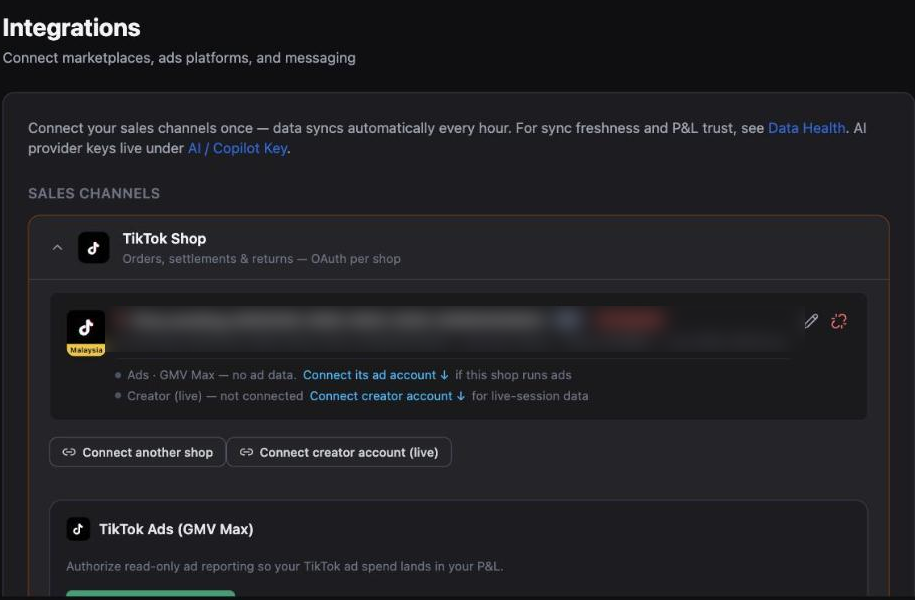
Open the Integrations page
In the app: Settings›Integrations
— under the Connections & data group.
Direct link: https://www.inseller.my/<your-workspace>/settings/integrations.
If you arrived from the onboarding checklist, "Connect your store → Go to step →" lands you
on exactly this page.
Every Inseller URL is scoped to your workspace, e.g. /glowwell-beauty/settings. If you belong to more than one workspace, check the name in the top-left before you connect anything.
Start the TikTok Shop authorization
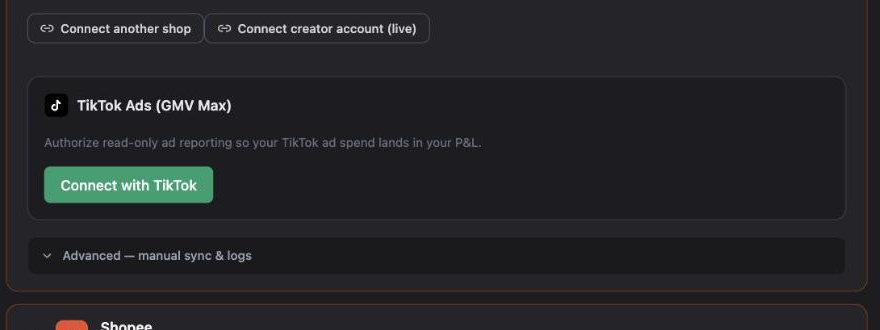
Open the TikTok Shop card — subtitle "Orders, settlements & returns — OAuth per shop". Click Connect TikTok shop if this is your first one, or Connect another shop to add more.
 1
2
1
2
Selling on both TikTok MY and TikTok SG? Repeat this for each shop. Inseller keeps them as separate stores and you can filter the whole app by store from the All Stores · 全部店铺 dropdown.
Approve it on TikTok's side
Inseller sends you to TikTok's authorization page. What you do there:
- Log in to TikTok Seller Center if you are not already signed in.
- Pick the region and then the shop you want to authorize.
- Leave every requested permission ticked, and confirm the authorization.
TikTok then returns you to the Integrations page and the shop appears as a card with its name, a country badge (MY / SG), the shop ID and a token-health badge.
 1
2
3
1
2
3
If TikTok says the shop is already bound, or Inseller refuses the connection, that shop is authorized to a different Inseller workspace. Inseller fails closed on purpose here — one shop cannot report into two workspaces. Disconnect it in the other workspace first.
Connect Shopee — start with the ERP shop
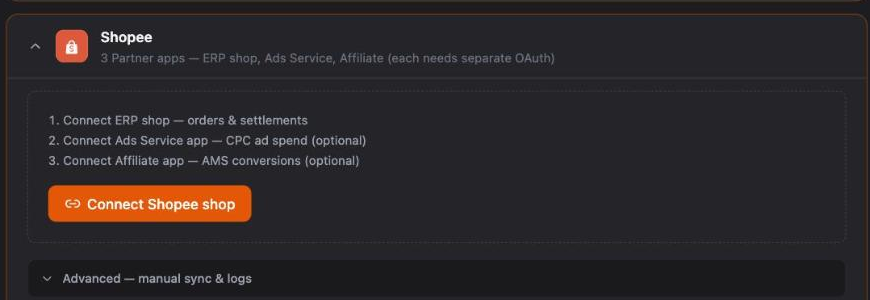
Shopee is not one authorization, it is three separate Partner apps. Inseller shows them as a checklist so you can see which ones are still missing:
- ERP shop — orders & settlements. Required, and it must be first.
- Ads Service app — CPC ad spend. Optional.
- Affiliate app — AMS conversions. Optional.
Open the Shopee card and click Connect Shopee shop.
 1
2
1
2
On Shopee's side you sign in to Seller Centre, choose the shop, and click Confirm Authorization. You then land back in Inseller with the shop listed.
Inseller will block the Ads and Affiliate authorizations until the ERP shop exists — "Connect the Shopee shop first, then authorize Shopee Ads." That is expected, not an error.
Add the Shopee Ads and Affiliate apps
Back on the shop's checklist row, click Connect Ads and then Connect Affiliate. Each opens its own Shopee authorization screen — same login, separate consent.
| App | What you lose without it |
|---|---|
| ERP shop (required) | Everything — no orders, no revenue, no fees. |
| Ads Service app | Shopee CPC spend. Your Shopee profit will be overstated by the whole ad bill. |
| Affiliate app | AMS conversions, so affiliate-driven Shopee sales cannot be attributed. |
This is the single most common half-finished setup. Sellers connect the ERP shop, see orders appear, and stop — then wonder why Shopee margin looks too good. Finish all three.
Let the first sync run
As soon as a shop is authorized, Inseller schedules a history backfill in the background. Depending on your order volume the first full order + settlement sync takes 10–30 minutes. After that, syncs run automatically every hour.
While it runs, the onboarding page shows a progress banner — "Still pulling your history — 62% done" — with a per-source breakdown. You can keep using the app; the numbers are real, just still partial, and they rise as the rest arrives.
Don't judge your dashboard until the banner is gone. A half-filled backfill looks like a bad month.
Verify it worked
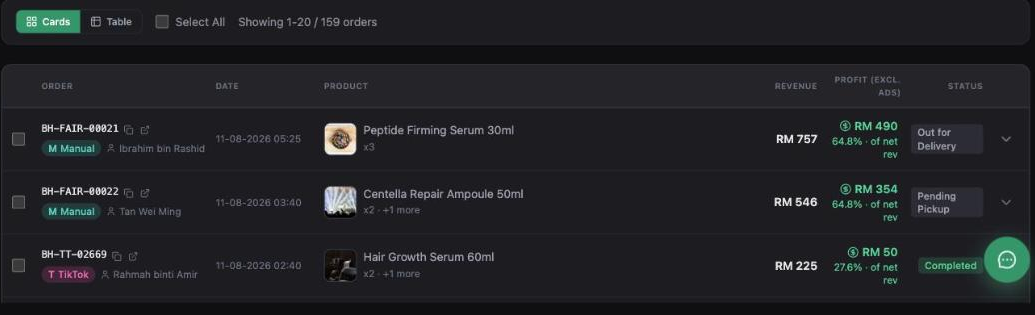
- Open Orders in the sidebar. Within 30 minutes you should see real orders with the correct platform badge (TikTok / Shopee) and status.
- On the Integrations page, the shop card shows a green token badge and a recent Last sync time — not "Never" and not "EXPIRED".
- On the Dashboard, the Data freshness strip shows Total orders: today.
Troubleshooting
Blank page after clicking Connect
Almost always DNS or an ad-blocking extension eating the redirect. Switch your DNS to Google (8.8.8.8) or OpenDNS, disable extensions for the tab, and retry.
The authorization loops back to the login page
Your platform session expired mid-flow. Open TikTok Seller Center or Shopee Seller Centre in another tab, log in fully, then come back and start the connect again. If it still loops, clear that platform's cookies.
"Shop already connected to another workspace"
Deliberate. One shop reports into exactly one Inseller workspace, otherwise the same order would be counted twice. Disconnect it from the other workspace (Integrations → the shop card → the unlink icon), then connect it here.
Token shows EXPIRED / "Reconnect required"
Platform grants have a lifetime, and a password change or a revoked app on the platform side ends them early. Click the reconnect icon on the shop card and run the same authorization again — your historical data stays.
Orders are syncing but revenue looks wrong
Check the Data freshness strip at the top of the dashboard before assuming the number is wrong — it shows how current orders, ads and settlements are. Fees are also estimated until the platform settles them, and the dashboard's Data trust banner tells you exactly what share is still an estimate.
I sell on Lazada / Shopify / my own site
Lazada has no connector yet and Shopify's install flow is still in setup. Until then, bring those orders in with the file import — see Import by file.
Was this page helpful?